Linux Quickstart Guide
Introduction
This guide is for people new to Linux. The aim of this documents is to help with everyday challenges when working with Linux systems. Generally, manual pages (e.g. man sed gives the terminal manual of sed) are almost everytime helpful and also -h (or --help) flags after commands quickly display helpful information. Obviously, the internet often helps as well and most of the time new things are learned doing. A good overview of the command line interface on linux is on the following github repository (there is also a german version, but reading the english one is recommended):
Probably most used linux commands:
| command [options] | description |
|---|---|
| cd /path/to/directory | Change to directory |
| mkdir [options] directory | Create a new directory |
| touch filename | Create an empty file with the specified name |
| cp [options] source destination | Copy files and directories |
| mv [options] source destination | Rename or move file(s) or directories |
| ls [options] | List directory contents |
| pwd | Display the pathname for the current directory |
| rm [options] directory | Remove (delete) file(s) and/or directories |
| rm -r [options] directory | Delete directories |
| cat [filename] | Display file’s contents to the standard output device |
| less [options] [filename] | View the contents of a file one page at a time |
| tail [options] [filename] | Display the last n lines of a file (the default is 10) |
| head [options] [filename] | Display the first n lines of a file (the default is 10) |
| grep [options] pattern [filesname] | Search files or output for a particular pattern |
| chmod [options] mode filename | Change a file’s permissions (u+x to make executable) |
| find [pathname] [expression] | Search for files matching a provided pattern. |
| sort [options] file | sort the file via [option] |
| ps [options] | Display a snapshot of the currently running processes |
| top | Displays the resources being used on your system. Press q to exit |
| kill [options] pid | Stop a process. If the process refuses to stop, use kill -9 pid |
More commands are:
| command [options] | description |
|---|---|
| man [command] | Display the help information for the specified command |
| echo [options] | Print string, variable, etc. |
| tar [options] filename | Store and extract files from a tarfile (.tar) or tarball (.tar.gz or .tgz) |
| bc | basic calculator (e.g. echo “3+2”| bc \(\;\) gives 5 for floats use flag -l) |
| chown [options] filename | Change who owns a file |
| clear | Clear a command line screen/window for a fresh start |
| date [options] | Display or set the system date and time |
| df [options] | Display used and available disk space |
| du [options] | Show how much space each file takes up |
| ln [options] source [destination] | Create a shortcut. |
| locate filename | Search a copy of your filesystem for the specified filename. |
| passwd [name [password]] | Change the password |
| ssh [options] user@machine | Remotely log in to another Linux machine, over the network |
| who [options] | Display who is logged on |
| > [oufile] | Write stdout (text written to terminal) to outfile (e.g. dftb+ > dftb.out) |
You can use Tab for autocompletion of commands.
Commands can usually be combined with the pipe: |. To write a pipe press Alt Gr + <|>-key (usually located on the left of Y on German keyboards) in between. For example:
grep "Done" dftb.out | cat -n To send your job to the background, stop it with CTRL+Z and then enter bg. Afterwards, you can logout with CTRL+D and the process will still be running (can be observed with top when relogging in) after you closed the terminal.
On the desktop computers in the office you can search the history with PageUp and PageDown keys. The prefix you entered will then be autocompleted by searching in the history for matching commands you entered before.
If you want quick access to files or directories in your home folder, the ~-symbol is an alias for your home directory /home/user (= \$HOME).
How to: edit files
For editing files you can use any editor that you like e.g.:
VSCode(code)neditgeditEmacs(emacs)
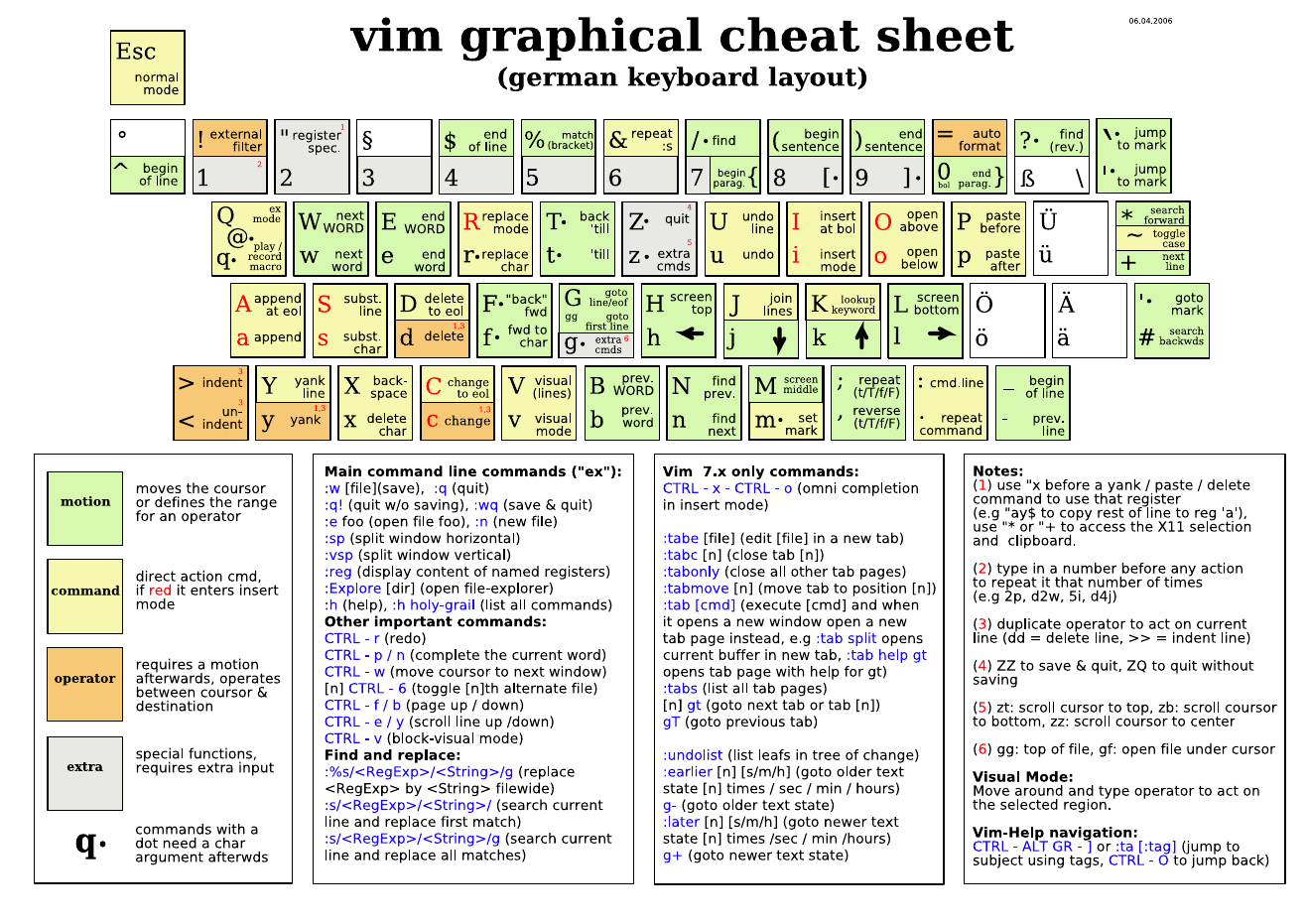
For quick changes in files vim is a good option as it runs in the terminal (no -X in ssh required). To learn the basic commands the vimtutor (just type "vimtutor" in your terminal) is highly recommended. To exit vim, just type :q and Enter.
How to: gawk
Basic usage of gawk:
gawk '{ [commands] }' fileExample: print the first and third column of the file example.dat. Be sure to add some spaces in between the columns using " ":
gawk '{print $1" "$3}' example.datExample: print the first column and \(500*x^2\) of the first column column of the file x.dat to calculate a harmonic potential and output then data to the file potential.dat:
gawk '{print $1" " 500*$1*$1}' x.dat > potential.datFor more advanced usage, also printf and if/else statements can be used similar in the language C. And sed (see below) can be used to substitute characters with white spaces which then generate new columns that can be printed with gawk.
How to: sed
Basic usage of sed:
sed -flags '[commands]' fileExample: every occurrence (g for global at the end) of "apple" in fruit.dat will be substituted (s at the beginning) by "banana":
sed 's/apple/banana/g' fruit.datTo extract lines between two strings (print every line between "pear" and "kiwi"), use:
sed '/pear/,/kiwi/p' fruit.datNote that symbols, numbers, words, strings can be replaced with a white space (" ") to separate columns which can be printed with gawk. The combination of sed and gawk is very powerful!
How to: for-loops in bash
A simple for loop looks like:
for i in [list]
    do
    [commands]
    done
For every item in [list] the commands between the lines do and done will be executed. For example to print all the items in the fruit list:
for i in pear banana apple
    do
    echo $i
    done
or print a sequence of numbers (here 1-10):
for i in $(seq 1 1 10)
    do
    echo $i
    done
or iterate over output files (here grep for the Total Energy of a QM calculation):
for i in $(ls *.out)
    do
    grep "Total Energy" $i
    done
How to: ssh & scp
Note the ~ symbol is an alias for /home/\$USER where \$USER is your username. To connect with a remote pc via ssh (no colon!)
ssh username@remote_host To enable streaming of windows (e.g. nedit) to your computer add -X (when accessing from home, -CY might be faster and more stable):
ssh -X username@remote_host Copy file from a remote host to local host (your computer):
scp username@from_host:one_file.txt some/folder/Copy file from local host (your computer) to a remote host:
scp one_file.txt username@to_host:/some/folder/Copy directory from a remote host to local host:
scp -r username@from_host:/some/folder/ other/folder/Copy directory from local host to a remote host:
scp -r some/folder/ username@to_host:/other/folder/The use of rsync is recommended. See:
https://www.tecmint.com/rsync-local-remote-file-synchronization-commands/
To login into remote computers without password authentication run ssh-keygen (just press Enter a few times) and ssh-copyid $USER@$HOST and enter the password. This is especially convenient for accessing the clusters.
Appendix: Vim Cheat Sheet